

The #1 best thing you can do for your local SEO is to create and maintain a Google Business Profile
Google My Business – now called Google Business Profile – is a powerful marketing tool that allows businesses to manage their online presence on Google, including Google Maps and Google Search. Google Business Profiles are 100% FREE and the best thing you can do for your SEO strategy.
Why should I set up a Google Business Profile?
A Google Business Profile (GBP) is going to help:
Increase search visibility on Google
When you search “restaurants near me” you are using what the marketing biz calls “discovery searches.” Google will rely on Google Business Profiles to show businesses that fit local criteria. Mobile searches that use phrases like “where to buy” and “near me” have increased by over 200% in recent years. Your Google Business Profile will allow your business to take advantage and show up on these local SERPs.
Solicit reviews from customers
A 5-star rating is going to give you more credibility with potential customers than any marketing materials that you create. 95% of customers read online reviews before buying a product or using a service, and Google Business Profiles builds in a review mechanism. Don’t be bummed if you don’t have a perfect 5-star review either – customers don’t expect perfection. You can build more trust by replying to all reviews – good and bad – and working to improve.
Glean customer insights to optimize your business
In addition to reviews telling you your strengths and shortcomings, you also get access to qualitative data about your customers. A Google Business Profile offers an insights tab that can tell you what keywords users are searching to see your listing, which call-to-action buttons are most effective, and whether you’re being searched on mobile or desktop devices.
Step-By-Step Guide to Creating a Google Business Profile
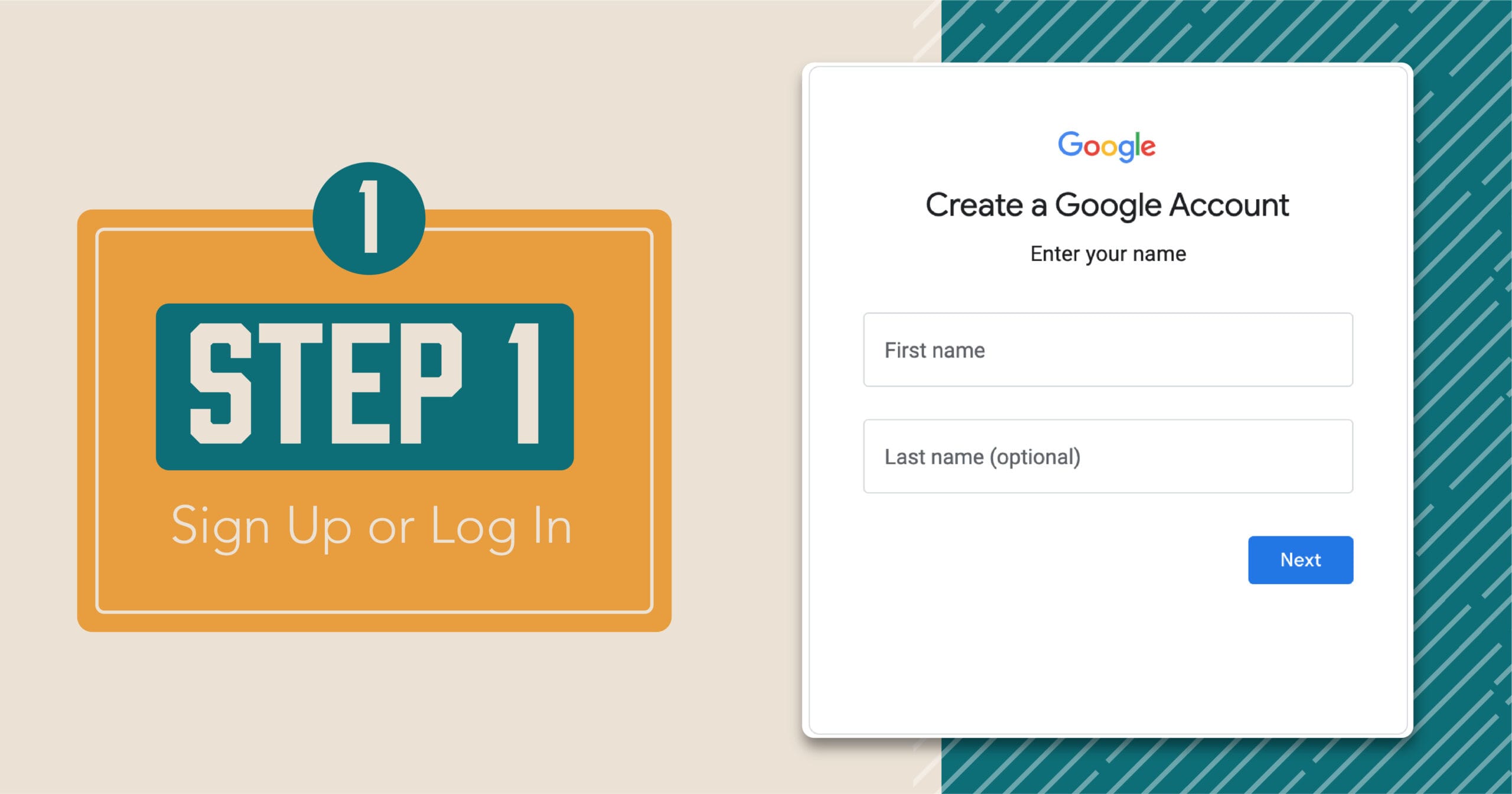
Sign Up or Log In:
- If you don’t already have a Google account, create one.
- Go to the Google My Business website: https://www.google.com/business/ and click “Manage now” or “Sign in” if you have an account.

2. Add Your Business:
- Enter your business name. Ensure it’s consistent with your real-world branding and DO NOT keyword stuff. You can add relevant keywords in your business description later.
- Choose the appropriate category for your business.
- If your business has a physical location that customers can visit, select “Yes” for “I deliver goods and services to my customers at their location” and provide your address. If your business doesn’t have a physical location but serves customers at their location (like a plumber or electrician), you can still list your service area.
- Add your website URL and phone number.
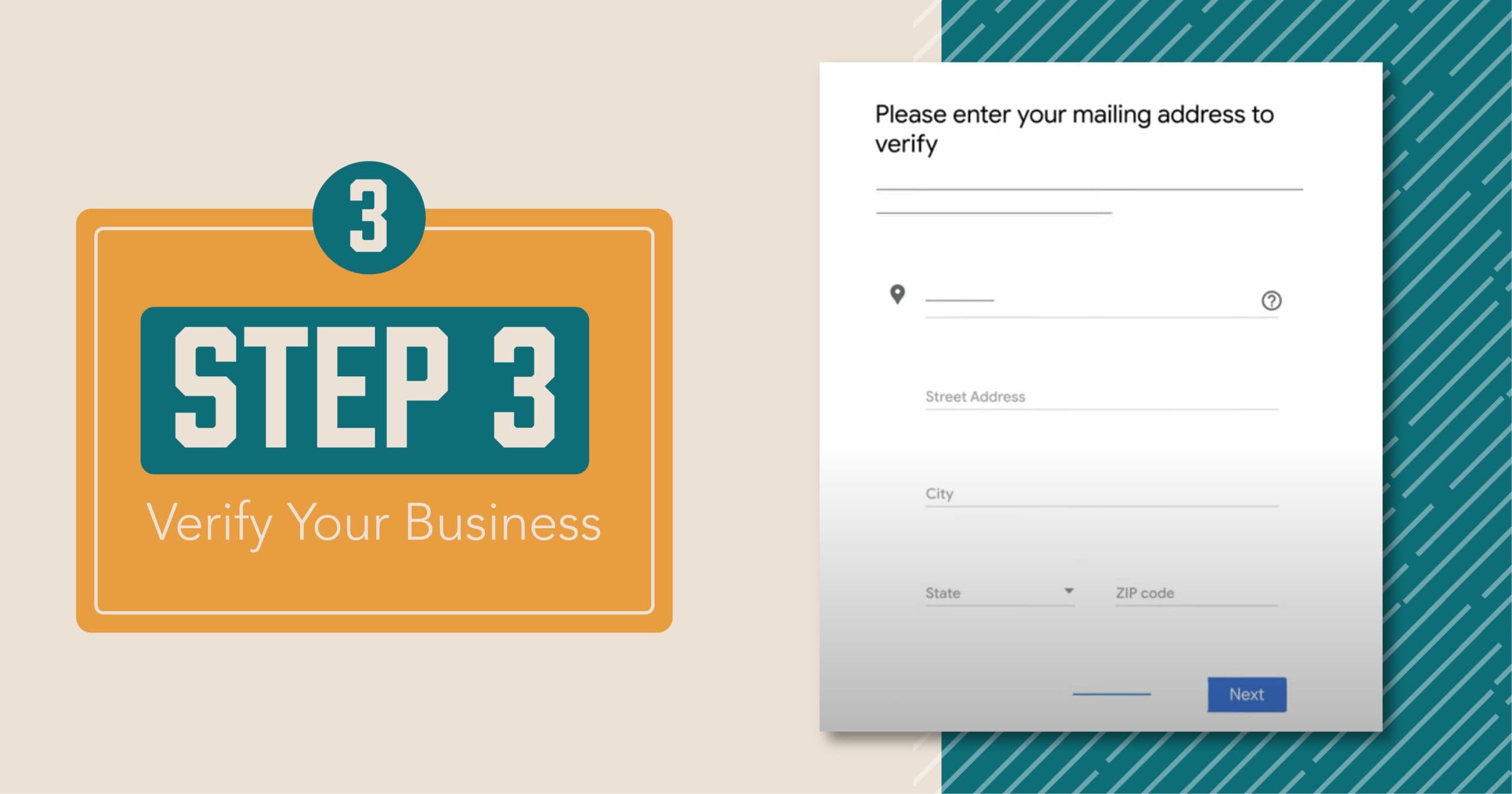
3. Verify Your Business:
- There are 5 ways that you can verify your listing: phone or text, email, video conferencing, live video call, or postcard by mail. Google may have verification restrictions based on business category; you can find more specific information on their FAQ page.
- Verifications can take up to 7 business days. You’ll receive a notification on your GBP account when you’re verified. If Google can’t verify you with the first method, you’ll be prompted to try a different method.
Be patient! It can take a few weeks for your updated Business Profile to reflect on Google. While you wait, you can work on optimizing your profile.
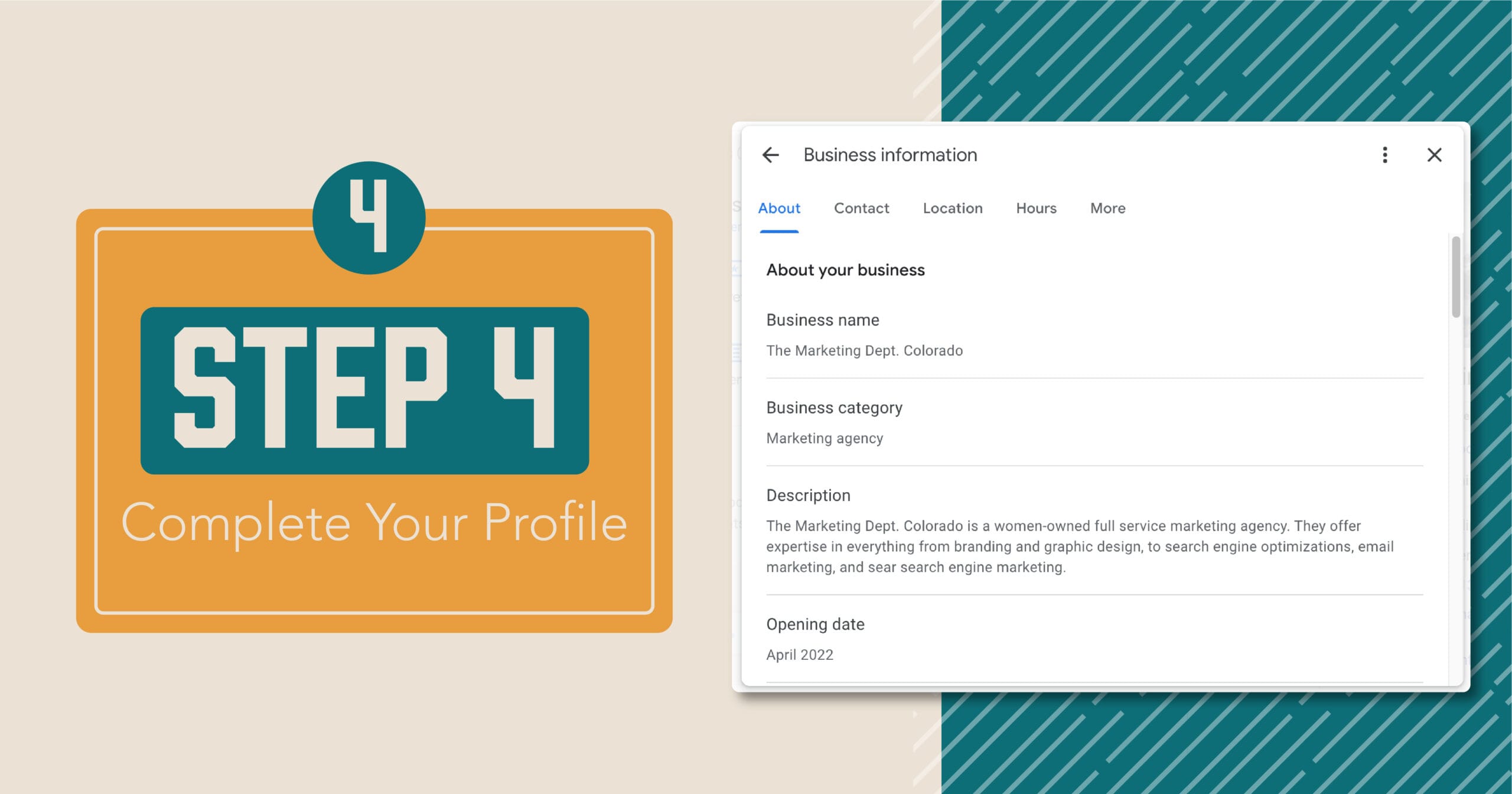
4. Complete Your Profile:
- Add important information about your business:
- Business hours
- Description of your business (you get 750 characters to briefly describe your business – make this count with a succinct use of top keywords!)
- Photos of your business (high-quality images of the exterior, interior, products, and services)
- Videos (if available)
- Attributes (e.g., wheelchair accessibility, free Wi-Fi, outdoor seating)
What if your business is already on Google as an unverified listing? You can claim this business and follow similar steps above. You’ll first want to find your business in Google Maps and look for the “Claim this business” button or “Own this business?” link. Follow the prompts to select “manage now.” You’ll be sent to verification first (step 3 above). After you verify that you own the business, you can update the profile within your Google Business account.
How to Optimize Your Google Business Profile
So you’ve created your Google My Business / Google Business Profile. Great! The next step is to properly optimize it to reap all the benefits.
- Confirm your Name, Address, and Phone (NAP)
It is crucial that this information is consistent anywhere your business appears online. Triple-check that the information needed to reach you is accurate. - Perfect your business description
We mentioned earlier that you get 750 characters to describe your business. Identify the top 2-3 keywords that you want to target and craft a business summary that uses those phrases in a natural way. At a minimum, you need to cover what your business does. If you’re looking for a more robust description, consider adding your business values and history. - Create Google posts
Google+ doesn’t exist anymore (RIP), but Google still has a social media-esque feature with their Google Business Profiles. There is a space where you can share the latest news, offers, and products from your business. Posts can create text, photos, and videos, much like other social media platforms. We recommend posting an update to your GBP at least once a week to have the update show on the Search Results Page. Google looks favorably on businesses using Google products frequently, and search engine bots crawl GBP updates just like they do your web copy. So as you’re drafting social media posts, consider reusing some of the content for Google Business Profiles – such as updates on promotions, blog articles, and featured products. The content you share in Google posts should be relevant to the information your customers are searching. - Respond to customers
Reviews aren’t the only way customers can engage with your business profile. Customers can also send in questions. Add FAQs to your Google Business Profile to give an added customer service oomph to your listing. And as a reminder, make sure that you’re responding to customer reviews… especially the negative ones. Show that you value feedback. - Add lead generation options
Google Business Profiles will default to driving visits to your storefront or website or encouraging a call. There are several other lead generation options you can take advantage of, including scheduling an appointment or requesting a quote. Make sure that you’re monitoring these submissions and that you’re set up technically to accommodate this integration. If you’re confused, we are happy to help our clients optimize their leads through Google.
Troubleshooting Common Google Business Profile Problems
We promised a do-it-yourself guide to Google Business Profiles, and we know from experience that the platform isn’t perfect. We’ve helped our clients troubleshoot some common problems, and we want to share our hacks with you.
- Listing more than one location on GMB profile – Do you operate more than one physical location? You can create a “Business Group” to manage a set of locations under one business. To create a business group, log in to your Google Business account and select the “Create business group” button in the top right corner of the page. If you can’t find the button, you may need to expand the 3-dash menu in the top left corner.
- Sharing an address with another business – Do you share a physical address with another business? We know lots of small businesses operate within a suite in another business, but Google doesn’t always make it easy to verify a shared space. To ensure that you are approved for verification at this shared location, you’ll want to make sure that you have a distinct business name, phone number, and website from the other businesses in your location. You’ll also want to go to your local post office (USPS) and get a legally different address (such as a suite number) so that you can get mail delivered for verification. As long as the mailing location is different, you should be approved by Google for your Business Profile.
- Google isn’t showing my Google Business Profile in search results – Google can sometimes take weeks to show a new Google Business Profile in search results. But if you have an established page that has suddenly disappeared, your business may no longer have location authority, you lack important content, or your account has been suspended. Improve your website’s SEO and confirm that you don’t have any alerts on your Business Profile account. If you’re still having issues, it might be an issue with too much local competition and out of your control.
Work with The Marketing Dept.
By using this guide, we hope you’ve been able to successfully create and optimize your Google Business Profile. A Business Profile is the first step to a search engine optimization strategy, but it’s only the beginning.
If you want help with more advanced SEO (or maybe a brand identity refresh or website redesign!), we are accepting new clients. Get in touch with us at www.themarketingdeptcolorado.com.


